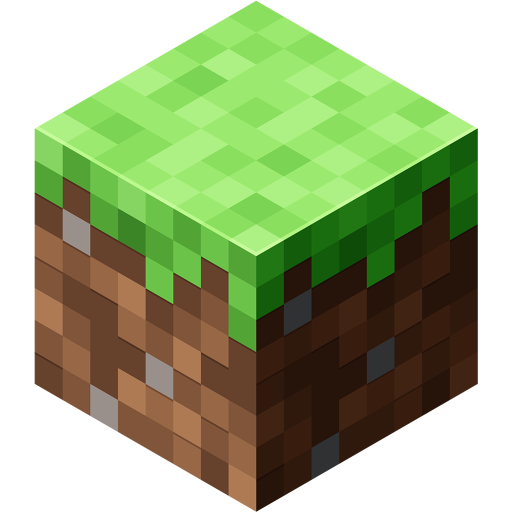
A Minecraft texture pack changes how your world looks. Materials, items, and other elements can take on a different style. Before choosing one, decide whether you want a familiar appearance with small changes or a completely different look for your builds.
Choose with your world in mind
- For building, check how wood, stone, glass, and vegetation look together.
- For exploration, make sure important objects remain easy to recognize.
- For a modest device, compare performance before committing to a more detailed pack.
Check compatibility before applying it
Confirm the edition and version listed by the creator. Packs for Java and other editions are not automatically interchangeable. Also check whether the content works in any world or only in the world supplied with it. Follow the creator’s instructions for the package you actually have.
Test it in a copy of your world and walk through a familiar area. Examine interiors, water, vegetation, and nighttime scenes. If several packs are active, check their priority and try them separately to identify visual conflicts.
A pack that looks attractive in a screenshot may feel awkward during a long session. Keep the one that lets you distinguish blocks, read the interface, and play comfortably on your own device.
Learn more: Texture packs in the official catalog.